
Using AI to Create Editable docs from photos
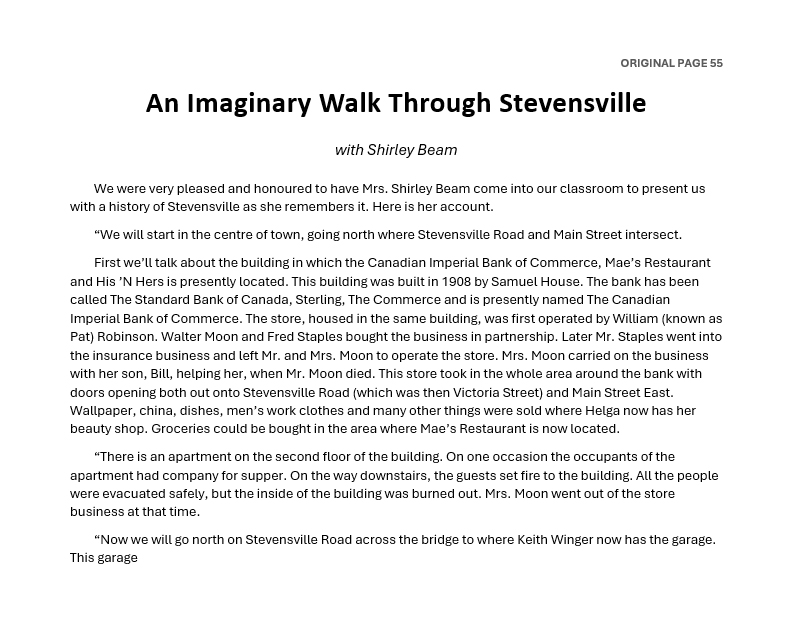
This is the opening page of the document I refer to in the article below. The book where it is reproduced is called “Our Town Stevensville…then & now” compiled by Elaine Winger and her Grade 3 and 4 class in 1984. As you can see it was reprinted in the book on page 55 and following. This particular section of the book is an account of a “trip” through the town where a long-time resident, Shirley Beam, presents the class with “a history of Stevensville as she remembers it.” What you see here is the editable text in a Word document created by ChatGPT from a photo of page 55. For the purposes of this exercise I am ignoring copyright considerations, and giving full acknowledgement to the author.
The other day I wanted to send a portion of an old document I had found to a friend. This document had been photocopied and reprinted in a book in the 1980s (see above). I saw this as an opportunity to test the capabilities of ChatGPT to turn a photographed doc into an editable text document. This would allow me to quote chunks of the text without resorting to either cutting and pasting chunks of photographs together, or retyping the original. (And by extension, I figured that if ChatGPT could do this, probably other similar AI apps like Gemini could too.)
For many situations this may seem like a fairly obscure concern. But the fact is, if you are researching a topic – historical, technical, etc. – you will often find yourself in a situation where you want to quote a source, and in order to do so you will have to reproduce it in one way or another. Having editable text capable of being copied and pasted would make life a lot simpler.
Step 1 – Take photos of the original pages
The original document I was referencing was actually 10 pages long so since I had decided to convert the entire document I had to take a photo of each page – 10 different photos. This was not actually necessary in my situation because the section I was referencing was on page 9. A photo of just that page would have been sufficient.
But I decided to do the entire 10 pages just to see how Chester would react. The pages in the book were reproduced from photocopies of a typed original. The reproductions were relatively clear and consistent and I simply took the pictures with my phone one page at a time. Here’s a sample picture…
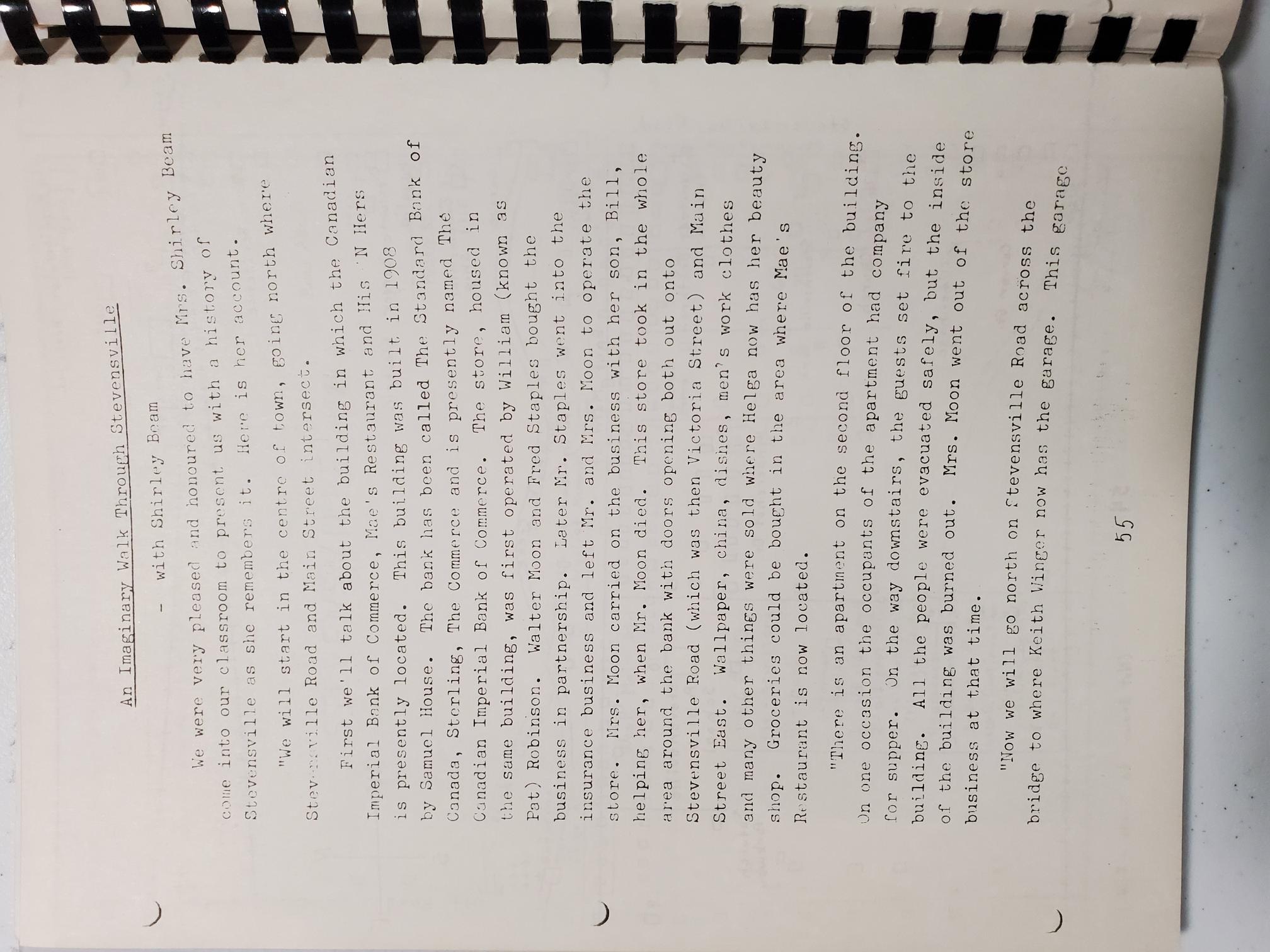
As you can see, these pictures were far from perfect. In particular the lighting was a concern. Other situations where I have photographed a page from a publication led me to believe that I would be able to brighten them up enough in Photoshop to be readable by Chester. As you will see further down, after the first few pages I didn’t bother brightening the rest in Photoshop and Chester was still able to read them just fine.
Step 2 – Clean up the photos in Photoshop
Here’s an example of an adjusted photo:
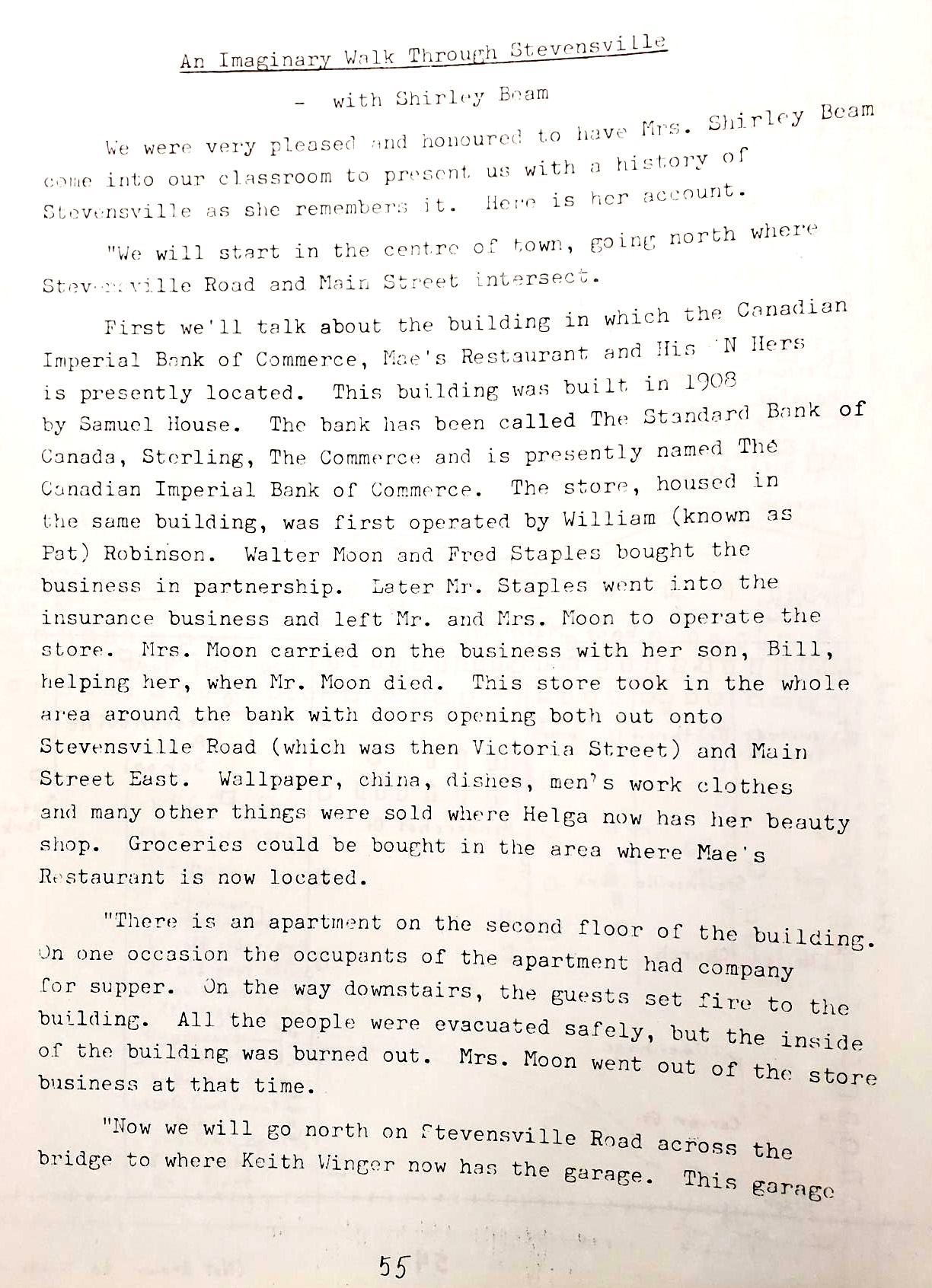
As I mention above, I initially felt I should probably brighten up these photos to make the text a bit more clear. I did this for the first four pages and then decided to try submitting them without adjusting them. It turned out that this was unnecessary. Chester worked just fine using original photos. (I also discovered, by the way, that there are some pretty simple tools built right into my phone for modifying photos. Since I have been using Photoshop to make these adjustments for about a million years I have never bothered seriously looking at the tools built into my phone.)
Incidentally, Chester was also able to use the original numbering (p. 55) to make sure the final pages were put in the right order.
Step 3 – Upload the photos to ChatGPT
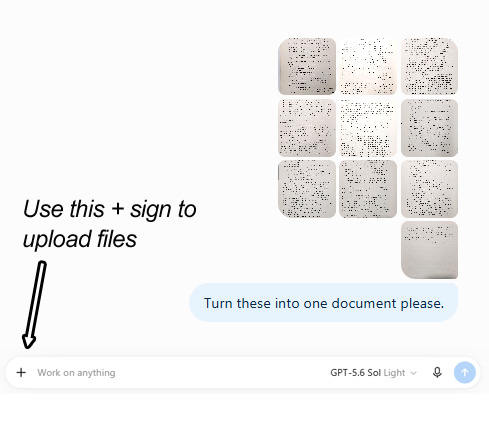
Here is the way ChatGPT looks after uploading the ten photos used here:
In case you have never done this sort of project Chester allows you to upload files (photos, images, documents, etc.) and then use the prompt to tell the program what to do with them. Notice that my prompt is short and sweet, and I have included “please” because one time Chester thought I was being too pushy.
The result was a complete editable Word document with all the pages in the correct order. As I previously mentioned Chester was able to put the pages in order by using the numbers at the bottom of each page. I was lucky that these numbers were in the original document. If they hadn’t been I suspect I would have had to add some indicator on each page to convey the correct order. And then I also suppose I would have had to include in my prompt “Don’t include the little indicator at the bottom of each page.”

Organizing my AI Posts

Brief history of the Hendershot house

Blackberry Management Looks Like They’ve Thrown in the Towel
About Author

The link to the complete Word document is here:
https://rickhendershot.com/Stevensville/stuff.php
This document maintains the page breaks as they are in Elaine Winger’s book “Our Town Stevensville…then & now” published in 1984.
It’s also here in web page format (also converted by ChatGPT):
https://rickhendershot.com/Stevensville/An_Imaginary_Walk_Through_Stevensville.html